
To adjust settings to print cheques through Quickbooks Online (QBO), please follow these steps:
1. Test Printer Paper Direction
- Download and print TestPrinterDirection.pdf
- After printing TestPrinterDirection.pdf, load the printed sheet back into your printer FACE UP, and print a test page from your printer.
- Use this to determine which direction to load your cheque stock into your printer
2. Configure Quickbooks Online Cheque Printing
- Go to Quickbook’s Print Cheque Setup page: https://qbo.intuit.com/app/printsetupchecks
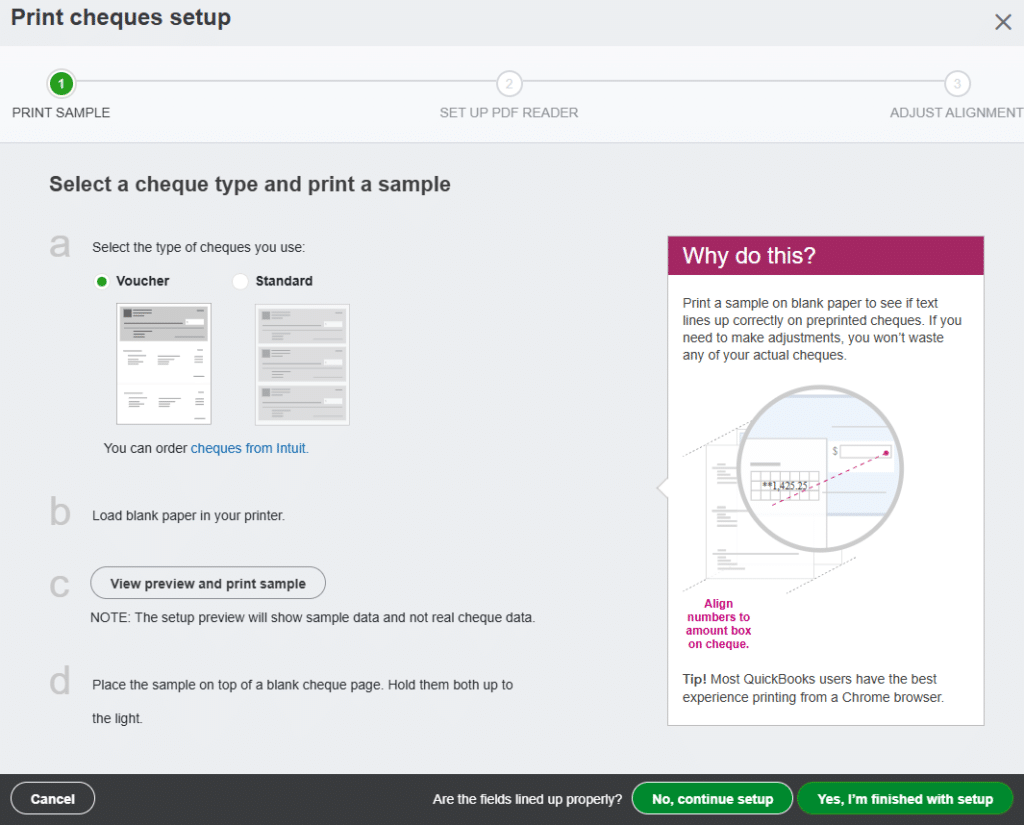
Select your cheque type:
- Voucher – 1 cheque per page, cheque located on the top stub (This is the Canadian standard)
- Standard – 3 cheques per page, one cheque per stub
On the bottom right of the screen click “No, continue setup”
3. Ensure you have the latest version of Adobe Reader
You can download the latest version of Adobe Reader here: http://get.adobe.com/reader/
After ensuring you have the latest version of Adobe Reader, on the bottom right, click on “No, continue setup”
4. Fine-tune alignment
By default, our cheques are setup to match a horizontal value of -10 (minus ten) and vertical value of -8 (minus eight). This is so the pay to window and company info are visible in a double window envelope.
If you find the memo line text too close to the white area for MICR numbering, you can adjust the vertical value to as low as -2(minus two).
You can download the QBO pdf sample set to our print positions here: https://chequesnow.ca/wp-content/uploads/2026/01/QBO-Print-Sample.pdf
After printing this on a cheque sample, adjust the print positions in QBO to adjust your printer’s alignment.
Printing with Reader? In the preview, click the printer icon and set these options in the Paper Size & Handling section:
- Actual size
- Choose paper source by PDF page size
- Auto portrait/landscape
Printing with your browser? In the Print window, be sure to print using actual size.
This means you may need to clear any options or properties that scale, shrink, or fit to size.
If you are still having issues adjusting these settings, you may need to contact:
- Quickbooks Online Support at 1-855-253-1536
- Your printer manufacturer to adjust printer margins.